Chapter 35
Chapter 35 — Agents in a workspace
One workspace can hold several agents. A researcher, a writer, an analyst — each with its own conversations, its own memory and its own settings, all working on the same project files.
Not the same as Agent Teams. Chapter 17 is about teammates the agent spawns for itself through
TeamCreate, coordinating over a mailbox to fan one task out. This chapter is about agents you put in the workspace and switch between by hand. You can use both at once — one of your agents can run a team.
The model
A workspace is a folder with your project in it. Under .thclaws/ sits a
shelf of agents:
my-project/                  ← your files, shared by every agent
├── index.html
├── src/
└── .thclaws/
    ├── bots.json            ← which agents this workspace has
    ├── settings.json        ← the host's own settings
    └── bots/
        ├── main/            ← one agent
        │   ├── AGENTS.md
        │   └── .thclaws/state/     ← its sessions, KMS, browser profile
        └── researcher/      ← another
            ├── AGENTS.md
            └── .thclaws/state/
The split is deliberate: your files are shared, each agent’s identity is not.
| Shared by every agent | Kept per agent |
|---|---|
| Every file in the project — the agent’s working directory is the workspace root | AGENTS.md and CLAUDE.md — its instructions |
| The git repository | settings.json — its provider, model, permission mode, feature toggles |
| Sessions and conversation history | |
| Knowledge bases (chapter 9) | |
| Its browser profile, including logins (chapter 28) | |
manifest.json — the Agent Template it came from |
An earlier release moved the project files into the agent’s folder too. That
was reversed: files in .thclaws/bots/main/ were invisible in Finder and to
every sibling agent, which is the opposite of what a shared workspace is for.
Opening such a workspace now puts them back at the root.
The agent rail
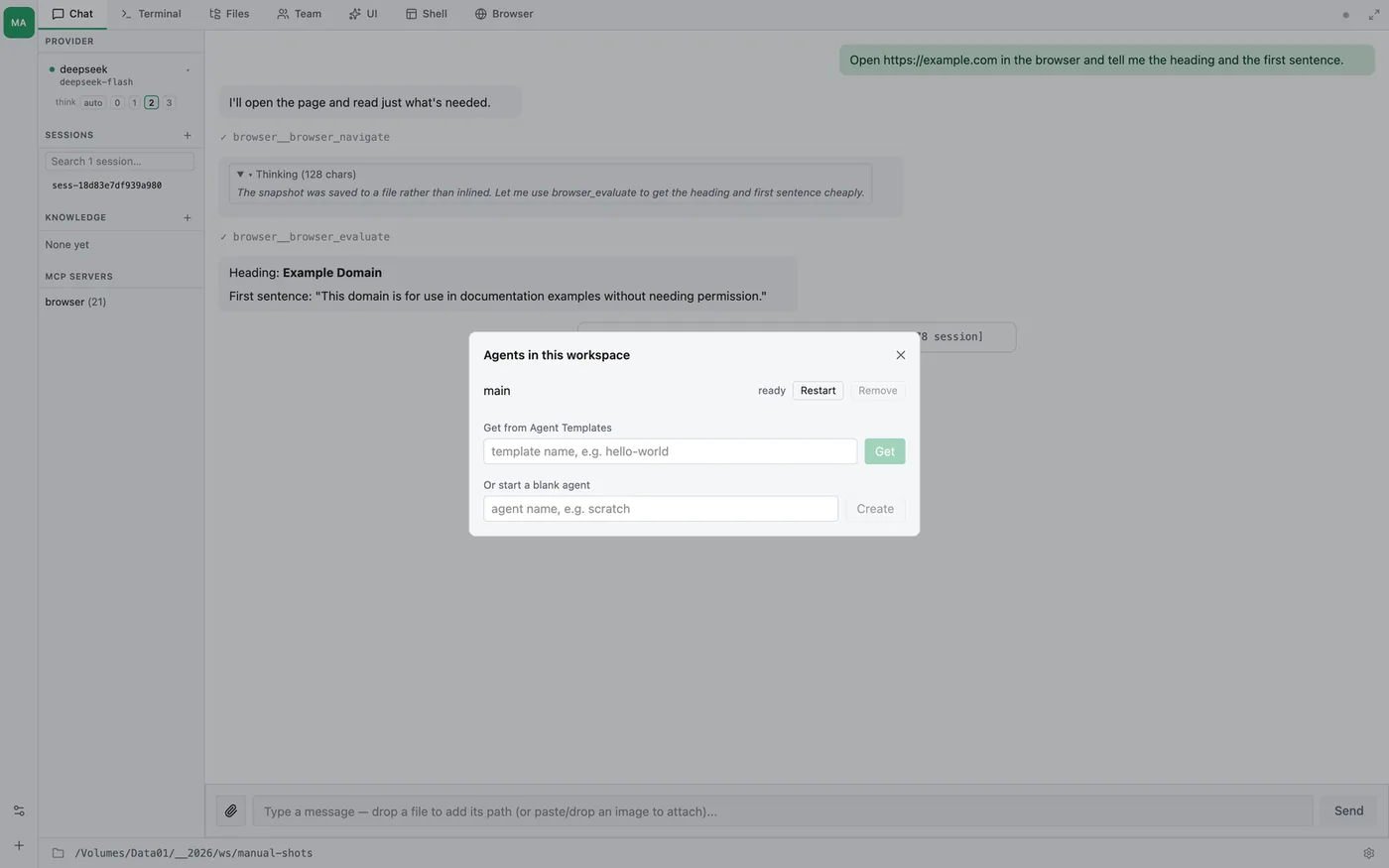
In the desktop app and in --serve, the narrow strip down the far-left edge is
the agent list — one square per agent, initials on it, the active one
highlighted. Hover a square for its name and state (main — ready). Click to
switch; the tab bar, sidebar and conversation all follow.
Two buttons sit at the bottom:
| Button | Does |
|---|---|
| Workspace settings | Add, remove or restart agents |
| Add an agent | Get one from an Agent Template, or start an empty one |
Adding an agent
Agents come from Agent Templates — the catalog at thclaws.cloud, covered in
chapter 27. Browse it there or with /cloud list.
From the GUI, click + at the bottom of the rail and pick a template.
From a terminal, in the workspace:
thclaws bots add <template>              # latest version
thclaws bots add <template> --version 3  # pin one
The template is unpacked into .thclaws/bots/<slug>/ and listed in
.thclaws/bots.json. A host that is already running picks it up on its next
start.
Installing is a host action, not something an agent does for you — an
agent’s sandbox stops at its own folder, so it cannot write a sibling’s.
Running /cloud get inside an agent replaces that agent, which is the
coherent meaning of “get” from where it is standing.
Removing one
thclaws bots remove <slug>           # unlist it; the folder stays on disk
thclaws bots remove <slug> --purge   # and delete its folder
Without --purge nothing is lost — sessions, knowledge bases and browser
logins stay where they are, and re-adding the agent picks them up again.
How it runs
The workspace is served by a host that supervises one process per agent. Each agent is an ordinary engine process with its working directory set to its own folder, which is what gives it the right identity, settings, sandbox and permission mode without any of them leaking between siblings.
The host itself loads no agent, no model and no MCP server. It is plain code, not something a web page can talk to — which is the point: it can reach every agent’s folder, so it must not be an agent.
If an agent’s process dies, the host restarts it.
Checking and upgrading a workspace
thclaws bots status
workspace  /Volumes/Data01/projects/my-project
layout     multiple agents (v3 or later)
agent      main (Main)
A workspace made before multi-agent support holds a single agent at its root.
Opening it in the desktop app or with --serve upgrades it in place. To do it
by hand, or to see what would move first:
thclaws bots migrate --dry-run
thclaws bots migrate
The migration is resumable — if it is interrupted, run it again. To go back,
for a workspace whose only agent is main:
thclaws bots unmigrate
Limits and gotchas
- Agents share files, so they can overwrite each other. Nothing locks a file between agents. Two agents told to edit the same file at the same time behave exactly as two people would.
- A
.thclaws/settings.jsonthat fails to parse makes every opt-in flag read as off, silently, for that agent only. If a feature refuses to switch on for one agent but works for another, check that agent’s file is valid JSON. - An agent’s own folder is its working directory, while your files are at the workspace root one level up. Tools that take an absolute path are unambiguous; a bare relative path is resolved against the agent’s folder, so say where you mean when it matters.